Getting set up
Getting to that first preview is a short sequence of one-time steps.
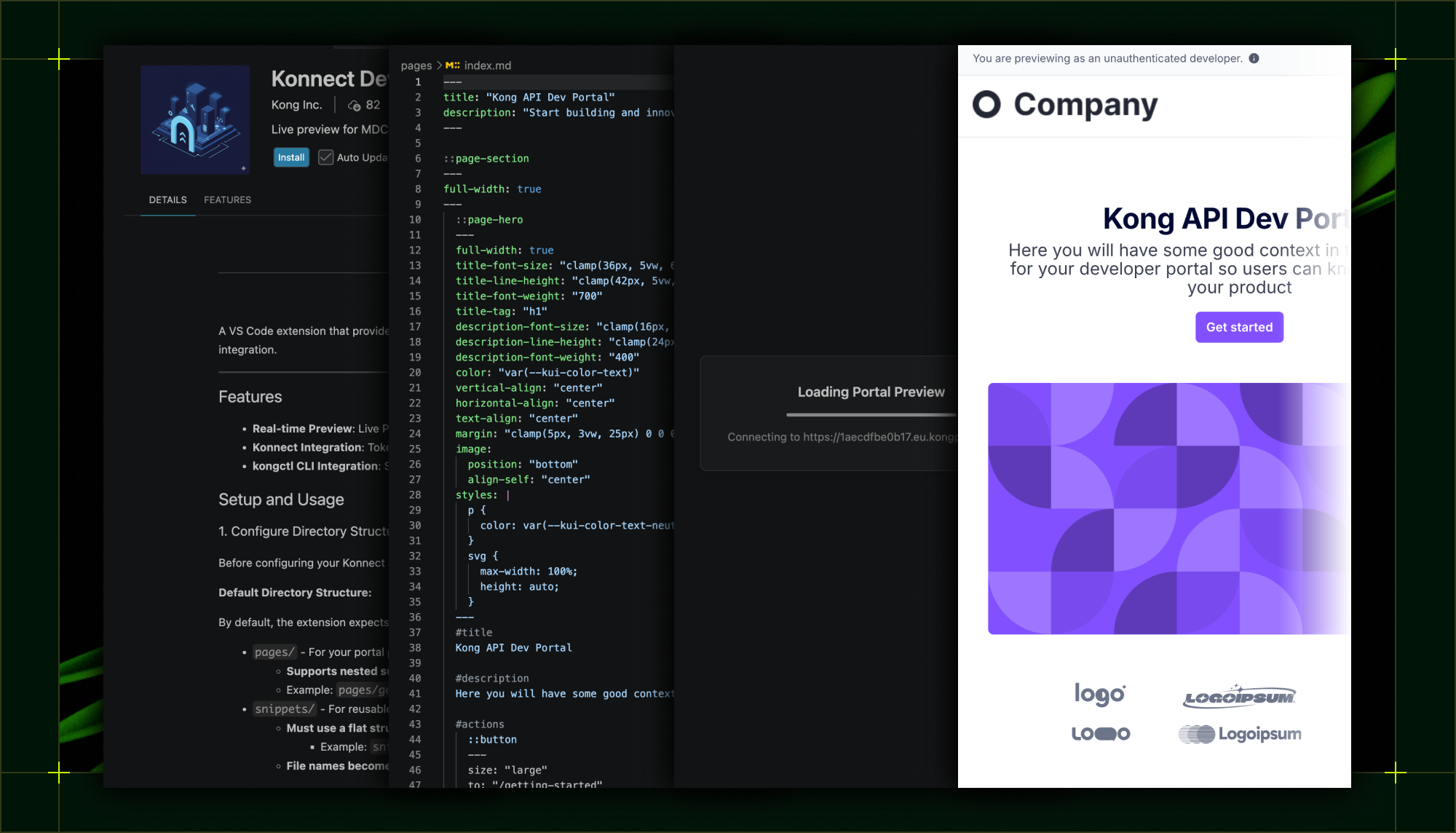
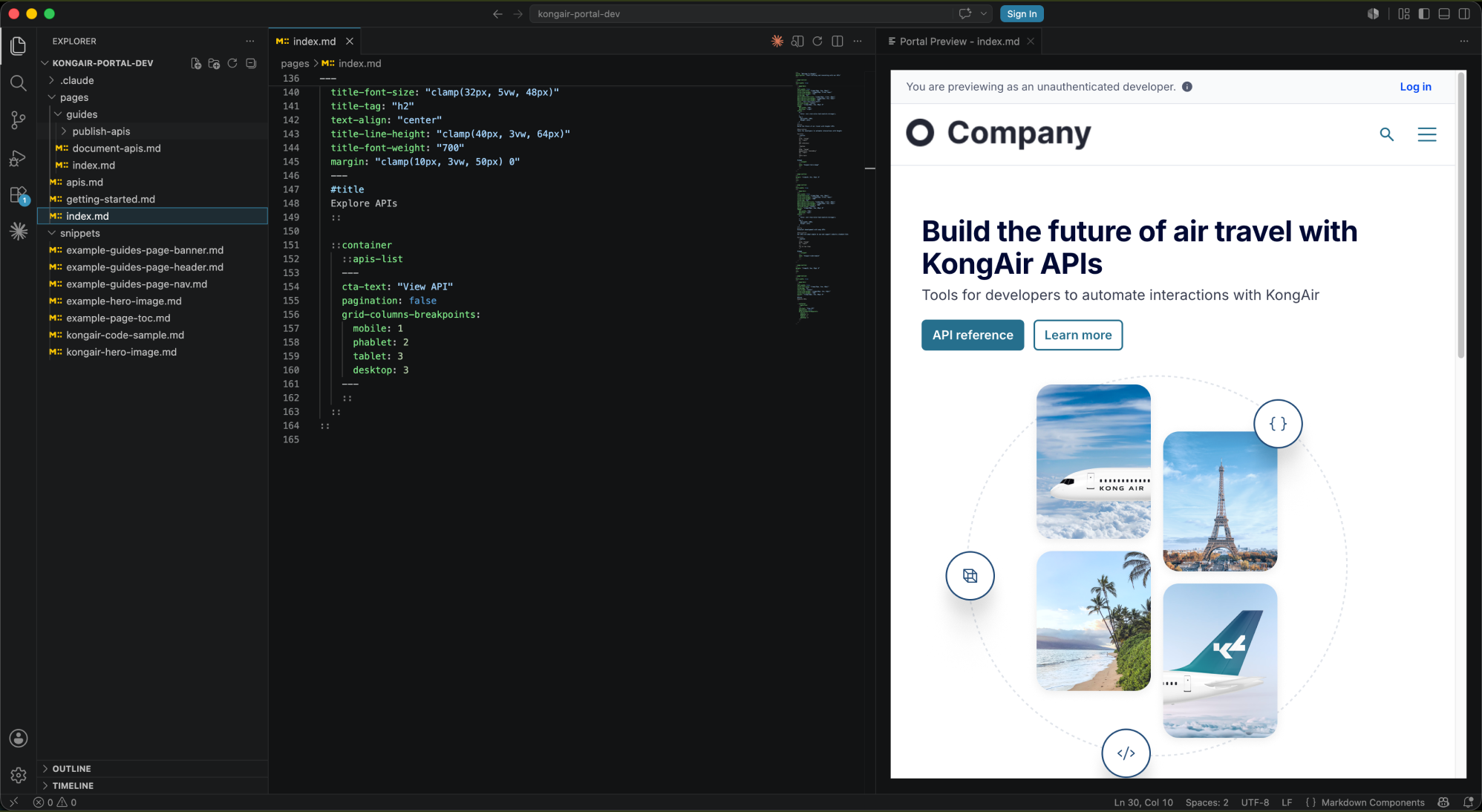
- Install the extension. Search for "Konnect Dev Portal Toolkit" in the VS Code Extensions panel, or install it directly from the [VS Code Marketplace](https://marketplace.visualstudio.com/items?itemName=konghq.vscode-konnect-dev-portal-toolkit)VS Code Marketplace or Open VSX.
- Configure a Personal Access Token. The extension authenticates to Konnect with a Personal Access Token (PAT), which starts with the prefix
kpat_. Use a token from the Konnect organization that owns the Dev Portal you want to preview. Run Configure Konnect Personal Access Token (PAT) and paste your token. It is stored through VS Code SecretStorage, which uses the operating system keychain, not in plain text in your settings. If you ever need to clear your credentials, Delete Access Token removes the token and the stored portal selection. [See here for instructions on creating a Konnect PAT.](https://developer.konghq.com/konnect-api/#personal-access-tokens)See here for instructions on creating a Konnect PAT.
- Choose your portal. Running Select Portal fetches the portals available to your account from the Konnect API and lets you pick the one to preview against. Your selection is validated when a session starts, so a stale selection does not silently break the preview.
- Configure directories if needed. If your repository does not use the default
pages and snippets directory names, set kong.konnect.devPortal.pagesDirectory and kong.konnect.devPortal.snippetsDirectory to match your layout.
- Add the recommended companion extension. We recommend installing the [Comark - Components in Markdown](https://marketplace.visualstudio.com/items?itemName=Nuxt.mdc)Comark - Components in Markdown (ID
Nuxt.mdc) extension for proper syntax highlighting, completions, and formatting while you author MDC. When you have a portal selected, the Konnect Dev Portal Toolkit can sync settings so that Comark offers completions backed by your portal's actual component metadata. That means the component suggestions you see while typing reflect what your portal really supports.
- Optionally integrate kongctl. [kongctl](https://developer.konghq.com/kongctl/)kongctl is Kong's command-line tool for working with Konnect from the terminal. The extension can work with it: it can install the CLI, check its status, show diagnostics, and run commands with your PAT injected, through commands such as Install CLI, Check Status, Show Diagnostics, and Run Command. If
kongctl is not available, the extension falls back to the API, so the CLI is an enhancement rather than a requirement.
Additional settings
A few additional settings round out the experience, all under the kong.konnect.devPortal.* namespace: autoOpenPreview, readyTimeout, debug, and showMDCRecommendation, along with the kong.konnect.kongctl.* settings for the CLI path and timeout.
Leveling up with the Konnect MCP
So far, everything keeps a human in the loop, which is exactly what you want when you are hand-authoring content and reviewing it as you go. But a growing amount of work now happens through coding agents, and the Konnect MCP server lets an agent take part in that same loop.
Connecting an agent
The Konnect MCP is a server you connect from an MCP-compatible client, such as Claude, Cursor, or Copilot, using a Konnect PAT. Connection and setup instructions live in its [documentation](https://developer.konghq.com/konnect-platform/konnect-mcp/)documentation, so this post focuses instead on what it unlocks once connected.
The short version is that your agent stops guessing at MDC from training data and starts asking the portal what is true. That matters for more than page copy: the same access lets an agent help brand your developer portal, apply customizations, and build page content that stays consistent with your design system.
Note: The Konnect MCP server can perform actions against the Konnect API using the credentials you provide. Depending on the permissions of those credentials, this may include modifying or deleting resources. For safety, use credentials with the minimum required permissions and review any AI-suggested actions before executing them.
The recommended agent workflow
To make all of that reliable, the Konnect MCP documents a recommended sequence for an agent to follow, and that sequence is what keeps the output correct and on-brand:
- Read the MDC syntax guide via the MCP once, to learn component syntax, props, slots, nesting, and formatting rules.
- Read the server usage guide via the MCP once, to learn how to use the tools effectively.
- List the components available in the target portal, so the agent works from the real catalog.
- Get component metadata: the authoritative specification of a component's props and slots, with descriptions, so the agent never invents prop names.
- Get component examples: real usage patterns to follow rather than improvise.
- Get design tokens: the portal's standardized colors, spacing, and typography, with primary brand colors derived from the portal's configured theme, so styling stays brand-consistent.
- Author the MDC content.
- Format the MDC, normalizing it to consistent formatting.
- Validate the MDC syntax, catching errors before anything is previewed.
- Generate a live preview URL, then visually inspect the result, then iterate on the design and MDC code until it’s a match.
Branding and customization
Steps 3 through 6 are what make this useful for branding and customization, not just copywriting. Because the design tokens come from the portal's theme, an agent can style content with the right colors, spacing, and typography rather than hardcoding values that drift from your brand. Components such as a page hero or a full-width page section can be built to match the portal's look from the start, so a new page reads as part of the portal rather than something pasted in.
The live preview URL and the feedback loop
How the preview URL works
The final step in that sequence is where the loop closes. Given MDC content and a target portal, the Konnect MCP generates a live preview URL that renders the content fully styled in the real portal context. Generating it requires a Konnect PAT configured for the MCP client. The URL is temporary and single-use: it is consumed on first visit and then expires. Because of that, a capable agent loads it deliberately.
It sets the browser viewport before navigating, so the page loads once at the intended width, and it waits for full hydration before taking a screenshot and comparing the result against the target. To test responsive behavior, it resizes the viewport in place rather than requesting another URL, since the existing page is already loaded, and it only requests a new preview URL when the MDC content itself changes. If the comparison shows something off, it adjusts the MDC, formats and validates again, generates a fresh URL, and repeats.
Navigating the URL, capturing screenshots, and comparing them does require a browser automation tool. [Playwright MCP](https://github.com/microsoft/playwright-mcp)Playwright MCP and [Vercel's agent-browser](https://github.com/vercel-labs/agent-browser)Vercel's agent-browser are two examples suitable for agents. And if no browser tool is available, the agent can simply return the preview URL for a user to open manually.
What the loop supports
The Konnect MCP documentation calls out three concrete use cases that this loop supports:
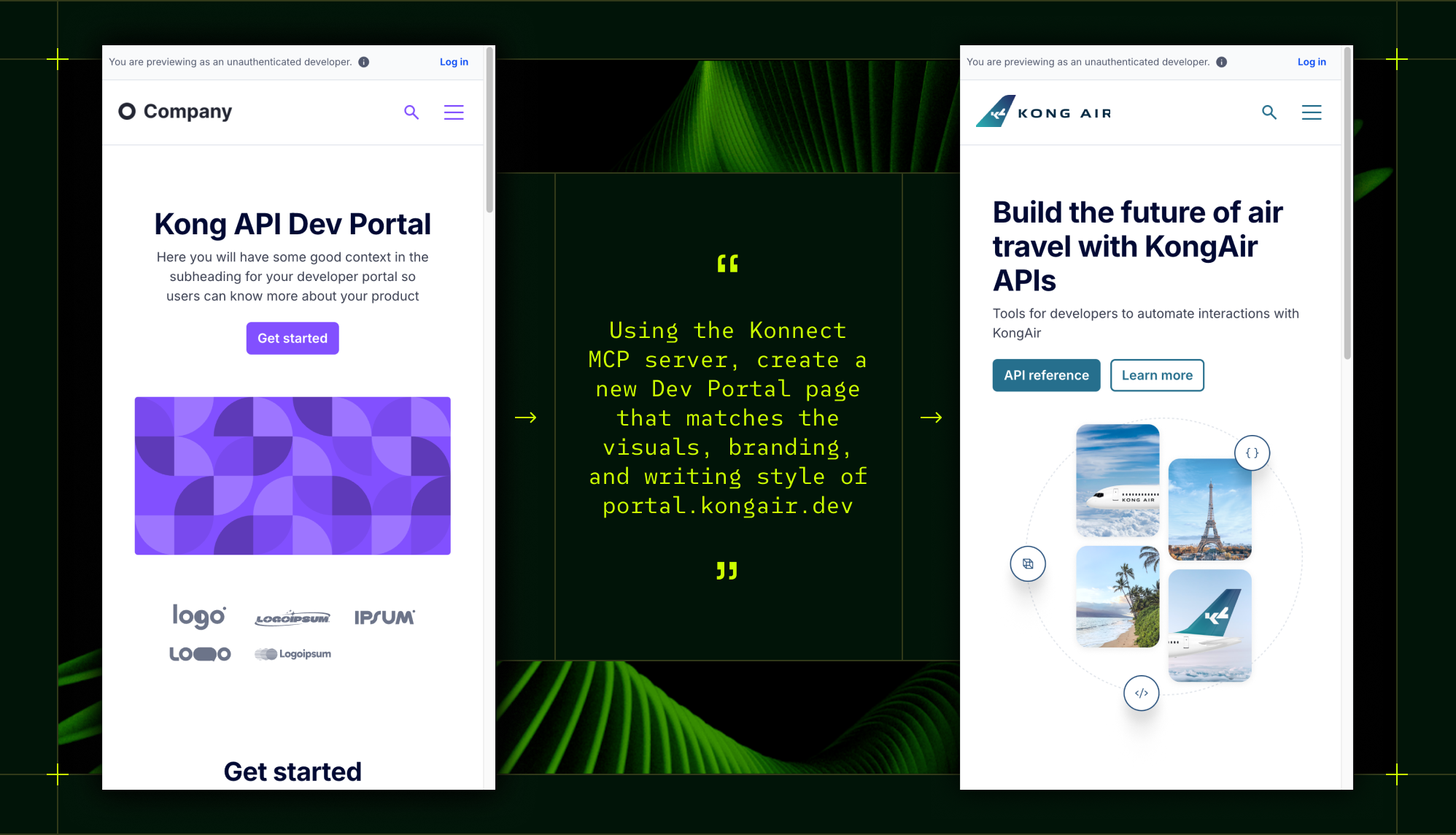
- Creating a new page from a source design, such as a screenshot or an existing marketing site, then building the MDC to match it.
- Editing an existing page, capturing how it looks before the change, making the change, and comparing the after against the before.
- Inspecting and improving responsive design, checking how a page behaves across viewport widths and tightening it up.
Matching a design from a prompt
The first of these is the most striking in practice: point an agent at a design you want to match and let it work toward that target. A prompt to start it off might look like this:
I'd like to create a new Dev Portal page that matches the visual layout, styling, branding, and look and feel of this URL: <INSERT_URL_HERE>. The page should be built using the Konnect Developer Portal's MDC components and design system, ensuring that it is responsive and accessible across different devices and screen sizes. Pay very close attention to the font treatments, layouts, backgrounds and colors, and both the desktop and mobile viewports.
Use the MCP server to understand the MDC language, available components, and how you can customize them, then iterate and do visual verification with the preview URL to make sure the rendered page closely matches the source URL above. You can use Agent Browser, Playwright MCP, or another browser tool alongside the preview URL to do visual comparisons and help you iterate to a final version that is as close as possible to the source URL.
From there the agent follows the sequence above. It learns the syntax and components, builds the page with your design tokens, validates the result, generates a preview URL, screenshots it, compares it against the source, and refines until the two line up.