WHY GARTNER’S “CONTEXT MESH” CHANGES EVERYTHING AI CONNECTIVITY: THE ROAD AHEAD DON’T MISS API + AI SUMMIT 2026 SEPT 30 – OCT 1
  • Why Kong
    • Explore the unified API Platform
        • BUILD APIs
        • Kong Insomnia
        • API Design
        • API Mocking
        • API Testing and Debugging
        • MCP Client
        • RUN APIs
        • API Gateway
        • Context Mesh
        • AI Gateway
        • Event Gateway
        • Kubernetes Operator
        • Service Mesh
        • Ingress Controller
        • Runtime Management
        • DISCOVER APIs
        • Developer Portal
        • Service Catalog
        • MCP Registry
        • GOVERN APIs
        • Metering and Billing
        • APIOps and Automation
        • API Observability
        • Why Kong?
      • CLOUD
      • Cloud API Gateways
      • Need a self-hosted or hybrid option?
      • COMPARE
      • Considering AI Gateway alternatives?
      • Kong vs. Postman
      • Kong vs. MuleSoft
      • Kong vs. Apigee
      • Kong vs. IBM
      • GET STARTED
      • Sign Up for Kong Konnect
      • Documentation
      • FOR PLATFORM TEAMS
      • Developer Platform
      • Kubernetes and Microservices
      • Observability
      • Service Mesh Connectivity
      • Kafka Event Streaming
      • FOR EXECUTIVES
      • AI Connectivity
      • Open Banking
      • Legacy Migration
      • Platform Cost Reduction
      • Kafka Cost Optimization
      • API Monetization
      • AI Monetization
      • AI FinOps
      • FOR AI TEAMS
      • AI Governance
      • AI Security
      • AI Cost Control
      • Agentic Infrastructure
      • MCP Production
      • MCP Traffic Gateway
      • FOR DEVELOPERS
      • Mobile App API Development
      • GenAI App Development
      • API Gateway for Istio
      • Decentralized Load Balancing
      • BY INDUSTRY
      • Financial Services
      • Healthcare
      • Higher Education
      • Insurance
      • Manufacturing
      • Retail
      • Software & Technology
      • Transportation
      • See all Solutions
  • Pricing
      • DOCUMENTATION
      • Kong Konnect
      • Kong Gateway
      • Kong Mesh
      • Kong AI Gateway
      • Kong Event Gateway
      • Kong Insomnia
      • Plugin Hub
      • EXPLORE
      • Blog
      • Learning Center
      • eBooks
      • Reports
      • Demos
      • Customer Stories
      • Videos
      • EVENTS
      • API + AI Summit
      • Webinars
      • User Calls
      • Workshops
      • Meetups
      • See All Events
      • FOR DEVELOPERS
      • Get Started
      • Community
      • Certification
      • Training
      • COMPANY
      • About Us
      • We're Hiring!
      • Press Room
      • Contact Us
      • Kong Partner Program
      • Enterprise Support Portal
      • Documentation
  • Login
  • Book Demo
  • Get Started
Blog
  • AI Gateway
  • AI Security
  • AIOps
  • API Security
  • API Gateway
|
    • API Management
    • API Development
    • API Design
    • Automation
    • Service Mesh
    • Insomnia
    • View All Blogs
  1. Home
  2. Blog
  3. Engineering
  4. Practical Strategies to Monetize AI APIs in Production
Engineering
March 27, 2026
16 min read

Practical Strategies to Monetize AI APIs in Production

Deepanshu Pandey
Kong Champion

AI APIs don't get enough credit for how much weight they're actually carrying. These AI APIs aren't merely technical connectors. They're, in fact, cost drivers and potential revenue engines. And when something goes sideways, they're ground zero. In production, they behave nothing like the traditional APIs your teams have been running for years; they introduce a whole new set of hurdles around operations, security, and governance that most organizations are still struggling to understand.

And here's where it gets interesting: most of the monetization conversations out there is laser-focused on pricing and packaging. Tiers, usage caps, consumption models — you name it. Useful stuff, sure. But the teams that have actually been in the trenches building and scaling these systems? They'll tell you pretty quickly that pricing is, most probably, the easiest part.

The tremendously difficult part is enforcing control.

Here's how the reality actually unfolds: you can't monetize what you can't secure. And you can't secure what you haven't governed. In today's distributed systems landscape, where things move fast, teams step on each other’s toes, and one bad configuration can blow up your entire trust model; governance isn't an afterthought.

It must be built in from day one.

And in practice? That work starts at the API gateway. Not in a strategy deck. Not in a compliance meeting. Right there, at the gateway — where every request comes in, and where you either have control or you don't.

The reality of AI APIs in production

Traditional APIs are, in a word, predictable. You know what you're getting:

  • Compute costs that don't surprise you
  • Traffic patterns that behave themselves
  • Clean, well-defined request and response cycles

AI APIs, especially anything that runs on LLMs under the hood, are a completely different story.

These things are highly unpredictable by their very nature. You're dealing with token-based costs that swing wildly depending on what someone throws at the model. Prompt sizes you never saw coming. Traffic that doesn't flow; it literally explodes, driven by agents that don't sleep, or slow down, or don't care what time it is. And on top of all that, the per-request compute costs aren't just higher, they're in a different league altogether.

And that's before you even get to the stuff that keeps security teams up at night: abuse, automated scraping, sensitive data moving through prompts in ways nobody foresaw.

This is what plays out more often than anyone dares to admit: one uncontrolled consumer, just one, starts hammering your system with large-token prompts. Not over days. Over only a few minutes. And by the time your monitoring dashboard even blinks, your infrastructure bill has already skyrocketed at a speed nobody ever assumed.

That's the thing about AI APIs that doesn't show up in the pitch deck. The exposure isn't theoretical — it's quick, real, and it compounds in the blink of an eye.

Monetization without enforcement is not an enterprise-scale strategy. It's, unfortunately, margin erosion with extra steps.

Why traditional API monetization models fall short

API monetization models are no secret now. Flat subscriptions. Per-request pricing. Tiered access plans. Partner contracts. These models have worked for years, and honestly? They still are at the helm.

But here's the catch: they weren't built for this.

With traditional APIs, a "request" meant something consistent, predictable, and deterministic. You could price around it because you understood what it cost you. With AI APIs, that assumption falls apart pretty fast. One prompt might burn through ten times the tokens of the next one. Agents don't just make calls — they make calls that trigger more calls, recursively, sometimes spinning up traffic that nobody manually initiated. AI-driven workflows can multiply your load autonomously, in ways that your pricing model never accounted for and your billing system definitely wasn't designed to handle.

So yes, keep the subscription tiers. Keep the per-request pricing. But if that's all you've got, you're leaving yourself wide open to vulnerabilities.

Real monetization in the AI APIs space means pairing your business model with actual infrastructure controls, and that's strictly not optional; it's the whole game. We're talking about:

  • Rate control – because without it, one aggressive consumer becomes your problem
  • Quota enforcement – so your pricing tiers actually mean something
  • Consumer segmentation – because not all traffic is created equal, and your system needs to know the difference
  • Usage visibility – because you can't price, protect, or optimize what you can't see
  • Abuse prevention – because the attack surface on AI APIs is bigger and weirder than most teams expect

The bottom line is this: monetization can't just live in a spreadsheet or a billing dashboard. It has to be baked into the infrastructure itself. If your enforcement strategy only exists at the business layer, it's already too late by the time something goes wrong.

Monetization models that actually work for AI APIs

In theory, monetization sounds straightforward. In practice, the teams that get it right aren't relying on a single lever — they're pulling several at once. Here's what that actually looks like in production.

1. Tiered access but with real teeth

Tiered pricing isn't a new idea. Free tier, Pro tier, Enterprise tier — everyone's seen this movie. But with AI APIs, the difference between doing this well and doing it badly comes down to only one thing: enforcement.

Slapping a label on a tier is easy. Actually, making sure your free-tier users can't consume like enterprise customers? That's the work. In practice, this means:

  • Free Tier — limited requests, tighter rate limits, no frills
  • Pro Tier — higher quotas, priority access, more headroom
  • Enterprise — custom SLAs, dedicated capacity, the kind of throughput that actually supports serious workloads

The tiers have to mean something technically, not just on a pricing page.

2. Usage-based quotas because "Per Request" doesn't cut it alone

Charging per request is fine as far as it goes. But in AI systems, a request isn't a fixed unit of measuring anything. So production teams that know what they're doing layer in:

  • Daily and monthly request caps
  • Burst control thresholds — because traffic spikes arrive unannounced
  • Per-consumer rate limiting — so one heavy user can’t drain it all

This isn't about nickel-and-diming your customers. It's about making sure your backend AI systems don't get buried by runaway usage that nobody budgeted for.

3. Feature gating: Keep premium, premium

Not every consumer needs access to everything, and frankly, they shouldn't have it. Most AI APIs are sitting on a range of capabilities:

  • Standard inference endpoints
  • Advanced reasoning models
  • Fine-tuned or specialized models
  • Data-enriched responses

Feature gating is how you ensure your highest-value capabilities stay valuable. If everyone gets access to your best models on a free tier, you don't have a premium offering, but you just have a severe cost problem.

4. Cost guardrails: Not a nice-to-have, a survival feature

While cost guardrails get skipped most often, they bite hardest. Forward-thinking production teams are putting hard limits around:

  • Maximum prompt sizes
  • Token usage thresholds
  • Concurrent request caps
  • Timeout enforcement

Let's be clear about what these are — they're not billing features. They're not UX decisions. They are the difference between a sustainable system and an infrastructure bill that makes your CFO drop his belly. In AI APIs, the cost of doing nothing here isn't abstract. It shows up fast and large.

Where the gateway becomes the control plane

Here's where the architecture conversation gets real.

In modern cloud-native environments, the API gateway has outgrown its original job description. It's not just a router anymore, meaning a thing that takes requests and points them in the right direction. In AI systems, the gateway has become something more fundamental: the enforcement layer. The place is where monetization and governance are either enforced or missing entirely.

Think about what a well-configured gateway is actually doing on every single request:

  • Authenticating the caller
  • Knowing who that caller is and what they're allowed to do
  • Applying rate limits before anything expensive gets triggered
  • Enforcing quotas so your pricing tiers hold up under real-world pressure
  • Segmenting traffic so the right workloads go to the right places
  • Logging usage in ways your billing and analytics systems can actually work with

That's not routing. That's a control plane.

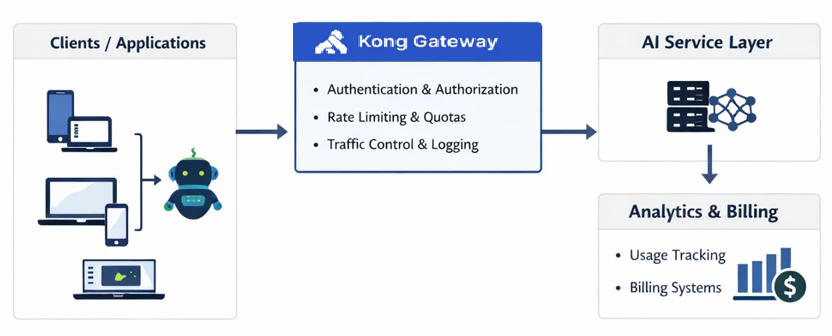
This is exactly where a platform like Kong Gateway fits naturally into AI monetization architectures. Instead of every team bolting custom enforcement logic onto every AI microservice, which is how you end up with inconsistency, gaps, and technical debt that compounds fast, you centralize policy at the gateway layer. One place. One source of truth.

With a cleaner architecture, you ensure:

  • Consistency — the same rules apply everywhere, every time, no exceptions
  • Auditability — a clear record of what happened, who did it, and when
  • Operational simplicity — fewer moving parts, fewer things to break, faster debugging when something does
  • Speed — when you need to iterate on your monetization model, you're changing policy in one place, not hunting down logic scattered across a dozen services

The teams that have figured this out aren't treating the gateway as infrastructure. They're treating it as a strategic asset. And honestly, in the AI API world, that's exactly what it is.

A practical architecture pattern

So what does this actually look like when you build it out? Here's the pattern that shows up again and again in production AI monetization architectures that withstand real-world pressure.

At the gateway layer, everything starts with identity. JWT or OAuth tokens tell the system exactly who's making the request — not approximately, not eventually, but before anything else happens. From there, consumer groups do the heavy lifting of mapping that identity to a pricing tier, so the system always knows what this particular caller is entitled to and what they're not.

Then the enforcement kicks in. Rate-limiting plugins are watching request thresholds in real time. Quota policies are making sure nobody blows past their usage caps — whether that's a free-tier user bumping against daily limits or an enterprise customer approaching contracted thresholds. And the whole time, every interaction is being logged and fed into analytics pipelines that your billing, monitoring, and business intelligence teams can actually use.

The sequence here matters more than it might seem at first glance. Notice what's happening: all of this runs at the gateway — which means monetization is enforced before a single token gets sent to your AI backend. Before your LLM spins up, compute is consumed, and the cost is incurred.

That's not a subtle distinction. In AI systems, where the cost of a single unchecked request can be significantly high, and the cost of a flood of them can be catastrophic, catching and controlling traffic at the edge isn't just good architecture.

It's what keeps the economics from unraveling.

An example of tiered AI API access

Picture an AI summarization API — the kind of thing you'd expose to external developers or internal teams building on top of your platform. Here's how you'd actually wire up monetization from the ground up.

Step 1: Get your service and route in place

Start simple. Register your AI backend behind the gateway and expose it through a clean, predictable route:

/ai/summarize

Nothing fancy here — you're just making sure all traffic flows through the gateway from day one. That's the foundation everything else is built on.

Step 2: Lock the front door

Before anything else, require authentication. JWT or OAuth — pick your poison, but the point is the same: every single request needs to be tied to a known, identifiable consumer before it goes anywhere near your AI backend.

This one step buys you a lot:

  • You know who's calling
  • You can assign them to the right tier
  • You can start measuring what they're actually consuming

No identity, no access. It's that simple.

Step 3: Make your tiers mean something

Here's where the pricing model stops being a slide deck and starts being a real thing. Apply rate limits at the gateway that actually reflect the tiers you're selling:

  • Free Tier — 100 requests per day. Enough to kick the tires, not enough to abuse the system
  • Pro Tier — 5,000 requests per day. Real headroom for developers building seriously
  • Enterprise — Custom policy, negotiated to fit the workload

The critical piece: these limits are enforced at the gateway, which means you're not touching backend AI code every time your pricing strategy evolves. The business logic and the infrastructure logic stay in their respective lanes.

Step 4: Don't sleep on burst protection

Quotas alone aren't enough, and this is the part that catches a lot of teams off guard. A consumer can technically stay within their daily limit while still sending enough traffic in a short window to knock your system sideways. So you go one layer deeper:

  • Per-second rate limits to flatten sudden spikes
  • Concurrent request caps so no single consumer monopolizes capacity
  • Timeout controls so a slow or runaway request doesn't become everyone else's problem

Your AI infrastructure is expensive to run. Burst protection is how you make sure a poorly-behaved client — or a well-behaved one having a bad day — doesn't turn into an outage.

Step 5: Close the loop with analytics

None of this matters if you can't see it. Gateway logs should be feeding directly into:

  • Your observability platforms so your ops team knows what's happening in real time
  • Usage dashboards so your product team can see how consumers are actually behaving
  • Billing systems, so what's happening at the infrastructure layer maps cleanly to what's happening on the revenue side

This is the step that turns your gateway from an enforcement tool into a business intelligence asset. When your infrastructure data and your revenue data are telling the same story, you're in a position to make smart decisions about pricing, capacity, and plan where to invest next.

The hidden risk: Agent-driven traffic

Here's the part of the conversation that's still catching a lot of organizations off guard.

As teams move toward agentic architectures — systems where AI agents are making decisions, chaining calls, and operating autonomously — the monetization challenge doesn't just grow. It changes shape entirely.

Agents don't behave like human users. They don't pause, don’t get tired, and don't notice when they've sent a thousand requests in sixty seconds. They chain API calls automatically, trigger recursive workflows, and generate traffic at a pace and volume that no human-paced usage model was ever designed to handle.

And here's the uncomfortable truth: without strong enforcement at the gateway, your own agents can unintentionally blow up your own monetization model. This isn't a theoretical edge case. It's happening in production right now.

This is exactly why governance and monetization are no longer separate conversations — they've merged. The gateway becomes the control surface for everything that matters in an agentic world:

  • Agent identity — knowing which agent is calling, not just which application
  • Scoped permissions — making sure agents can only do what they're supposed to do
  • Traffic shaping — keeping autonomous workloads from crowding out everything else
  • Observability — because if you can't see what your agents are doing, you're flying blindly

Observability is revenue protection

You can’t monetize what you can't measure.

In AI systems, observability isn't just about keeping the lights on. It's a direct line to your revenue model. What you need and what serious production teams are building toward is:

  • Real-time visibility into what's flowing through your system
  • Per-consumer analytics, so you know exactly who's consuming what
  • Error rate monitoring, because degraded responses still cost you compute
  • Latency tracking, because slow AI is expensive AI
  • Usage trend forecasting, so you're not always reacting after the fact

When you centralize logging and metrics collection at the gateway, something useful happens. You stop being reactive and start being strategic. You catch abuse early on, even before it becomes an incident. You see which tiers are being maxed out and which are underutilized, which directly informs how you price. You get the infrastructure cost data sitting right next to the revenue data, so the two stories finally match up.

Observability isn't operational hygiene. It's a business requirement. Treat it like one.

Production lessons learned

Across real-world AI API deployments, the same hard lessons keep showing up. They're worth saying plainly:

  • Monetization fails without enforcement. A pricing model that lives only in a billing system is a suggestion.
  • Enforcement has to happen before compute is consumed. Once the token hits the model, the cost is already real.
  • Rate limiting alone isn't enough. Without quotas, you're managing speed but not volume.
  • Agents introduce a different category of unpredictability. Plan for it explicitly or get surprised by it repeatedly.
  • Governance and monetization are inseparable. If your team is still treating these as separate workstreams, that gap will cost you enormously later.

The teams that are getting this right have internalized something that sounds simple but runs counter to how most organizations operate: they treat AI APIs like products but protect them like infrastructure.

The strategic shift: Monetization as infrastructure

In traditional software, billing is something that happens downstream. You build the thing, you ship the thing, and somewhere along the way the finance team figures out how to charge for it.

In AI systems, that model is broken.

Monetization has to move upstream and has been embedded directly into the layers where decisions actually are made. Authentication layers. Policy engines. Traffic controls. Gateway configurations. By the time a request reaches your AI backend, the monetization decisions should already be made.

This is the shift that turns the API gateway from a piece of plumbing into a revenue enabler. And it's why platforms like Kong Gateway have become central to how serious teams architect these systems. The ability to attach policies dynamically, segment consumers, apply per-route controls, integrate with analytics, and scale enforcement without rewriting your services — that's not a nice-to-have. That's the operational backbone of a monetization strategy that can actually hold up.

And critically, all of that happens without tangling your business logic up inside your AI services. The gateway handles policy. Your services handle intelligence. Everyone stays in their lane.

Looking ahead: AI monetization in an agentic world

As AI systems become more autonomous, the comfortable assumptions that pricing and packaging teams have been working with are going to keep eroding. Traffic patterns will get less predictable, not more. Usage models will shift faster than annual roadmap cycles can accommodate. New pricing strategies will emerge; some of them driven by technology changes nobody has fully mapped yet. And governance expectations, from customers, regulators, and internal stakeholders alike, are only going in one direction.

The organizations that come out ahead in this environment won't necessarily be the ones who moved fastest on pricing. They'll be the ones who built control into their architecture early, when it was still a design decision rather than a crisis response.

In AI-native systems, monetization isn't a pricing conversation anymore. It's an architectural must-have.

And that architecture has one clear, practical starting point: the gateway.

Hands-on lab: Monetizing an AI API with metrics using Kong API Gateway

Here's the thing about AI APIs: talking about monetization strategy is one thing. Actually building it is another.

In production, there are three capabilities that aren't optional. You need secure access — because an API without authentication isn't a product, it's an open door. You need usage tier enforcement — because pricing tiers that can't be enforced technically aren't tiers, they're just labels. And you need real visibility into usage — because without measurement, you're making pricing, capacity, and abuse decisions in the dark.

Most teams know they need all three. Far fewer have actually wired them together in a way that can withstand real-world pressure.

That's exactly what this lab is about. We're going to build this out end-to-end — not as a toy example, but in a setup that mirrors how this actually gets done in production. By the time we're done, you'll have stood up secure access, wired in tier-based enforcement, and connected the whole thing to metrics and monitoring that give you genuine visibility into what's happening on your system.

Let's get into it.


Step 1: Start Kong Gateway

We’ll deploy Kong using Docker with PostgreSQL.

docker network create kong-net

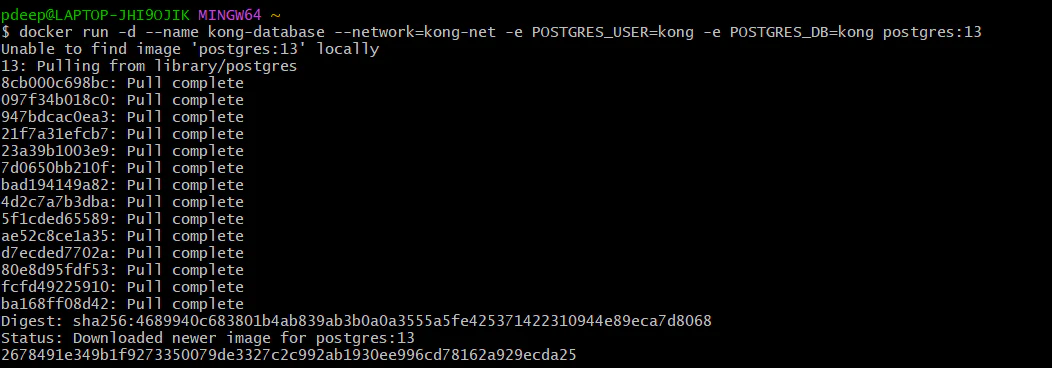
Step 2: Run PostgreSQL for Kong:

Note: Before running this, ensure you have successfully created the kong-net network in Step 1 so the database and gateway can communicate.

docker run -d --name kong-database --network=kong-net -e POSTGRES_USER=kong -e POSTGRES_PASSWORD=kong -e POSTGRES_DB=kong postgres:13

Step 3: Run Kong Migrations 

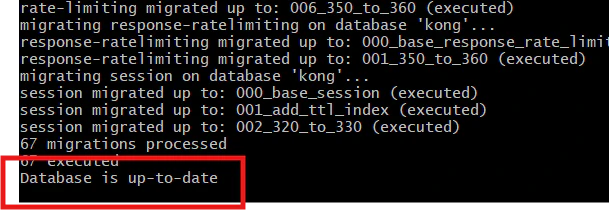
docker run --rm --network=kong-net -e KONG_DATABASE=postgres -e KONG_PG_HOST=kong-database kong:latest kong migrations bootstrap

Wait until you see the database up.

 Now, our migration is successful.

Step 4: Start Kong Gateway

docker run -d --name kong --network=kong-net -e KONG_DATABASE=postgres -e KONG_PG_HOST=kong-database -e KONG_PG_PASSWORD=kong -e KONG_ADMIN_LISTEN=0.0.0.0:8001 -p 8000:8000 -p 8001:8001 kong:latest

Step 5: Test Kong Gateway

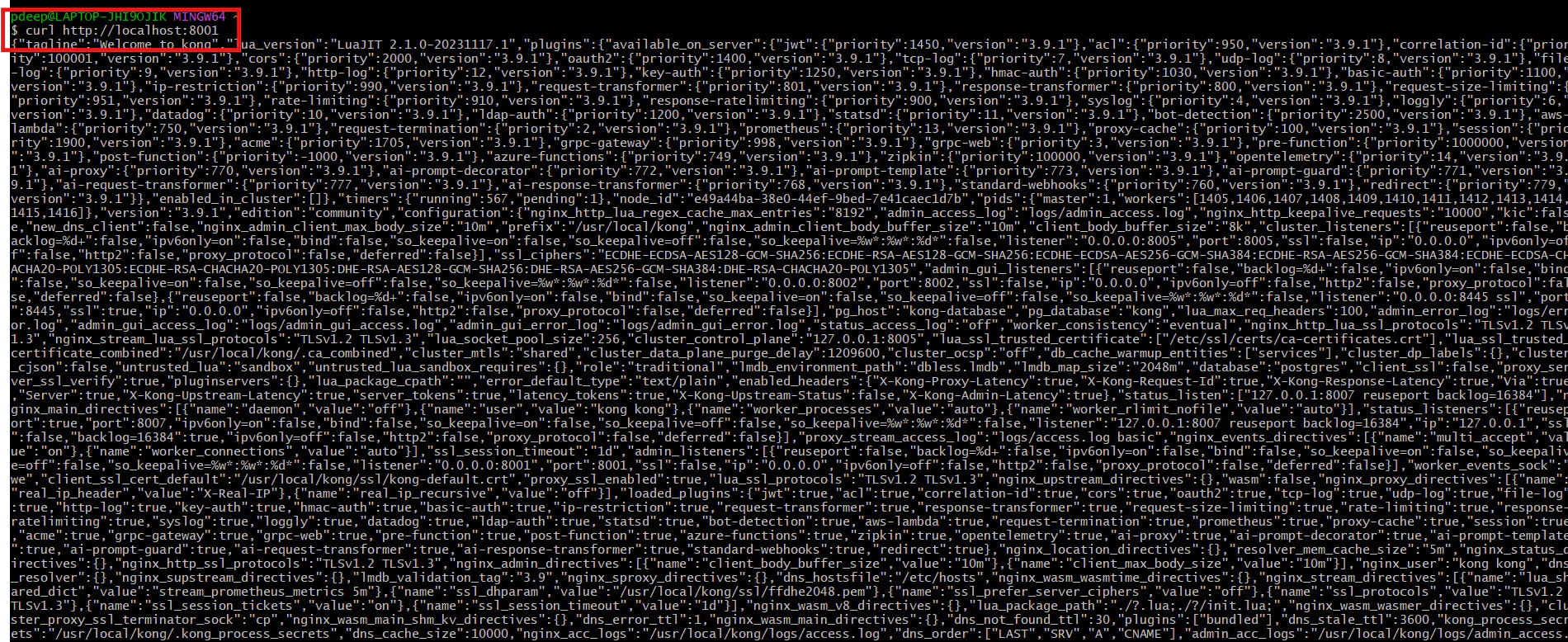
curl http://localhost:8001

We are now running Kong Gateway with PostgreSQL in proper production mode.

Step 6: Create your AI backend service

Right now, Kong is running, but it’s not routing anything yet. Let’s add your backend.

Run Mock AI Service

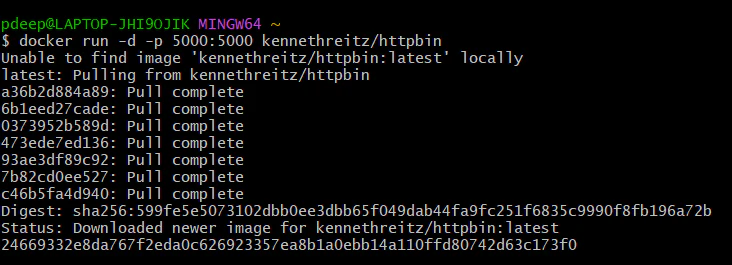
To keep this lab simple and focused on the gateway, we are using kennethreitz/httpbin as a lightweight proxy to simulate a real LLM or AI endpoint.

docker run -d -p 5000:5000 kennethreitz/httpbin

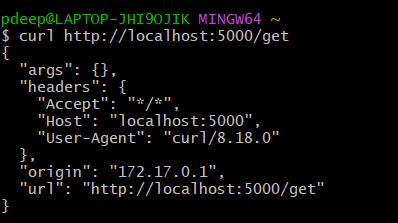
Step 7: Do a curl using the below command. If you see JSON – backend is ready.

curl http://localhost:5000/get

Now connect backend to Kong

Step 1: Create service in Kong

curl -X POST http://localhost:8001/services -d "name=ai-service" -d "url=http://host.docker.internal:5000"

You should get JSON response showing service created.

Step 2: Create route in Kong

Our Route is also created

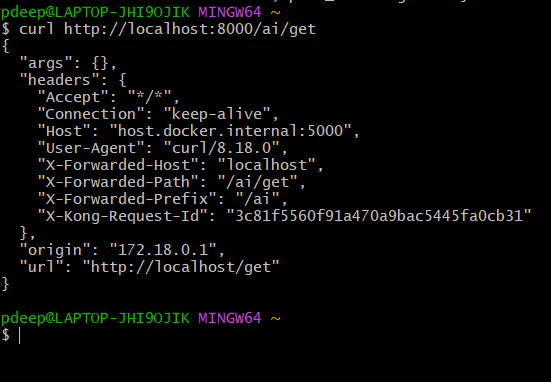
Step 3: Test through Kong proxy

curl http://localhost:8000/ai/get

If everything is correct, you will again see JSON – But now the request is flowing:

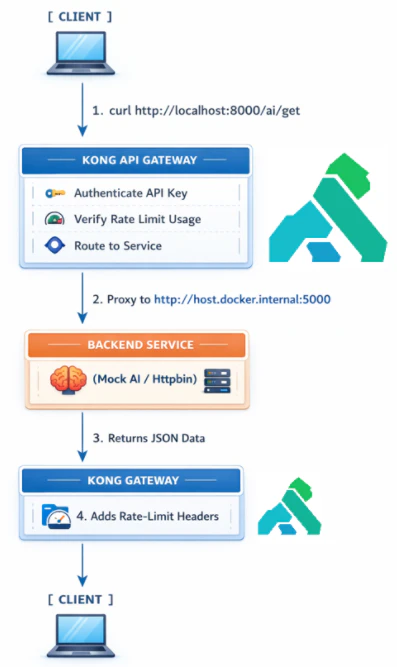
Client -> Kong -> Http bin -> back to client

This means Kong routing is working.

Right now, everyone can access http://localhost:8000/ai/get . We will secure it.

Next step: Add security (API Key Authentication)

Step 1: Enable key authentication plugin

curl -X POST http://localhost:8001/services/ai-service/plugins \

  -d "name=key-auth"

You should get JSON response confirming the plugin is enabled.

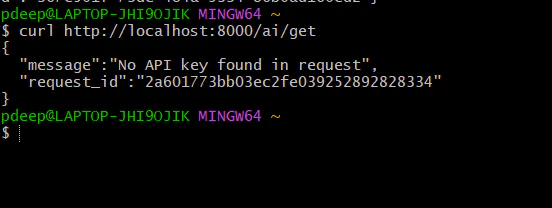
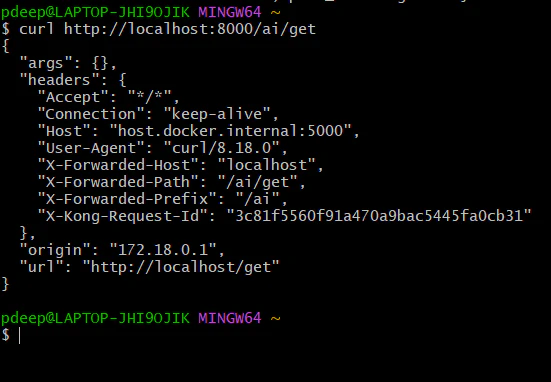
Step 2: Test without key (should fail)

curl http://localhost:8000/ai/get

You should see: 401 unauthorized. “No API Key found in the request”. That means security is working.

Step 3: Create consumer (user)

Create a consumer:

curl -X POST http://localhost:8001/consumers \

  -d "username=deepanshu"

Step 4: Generate API Key

curl -X POST http://localhost:8001/consumers/deepanshu/key-auth

It will return response in JSON and API Key will be present.

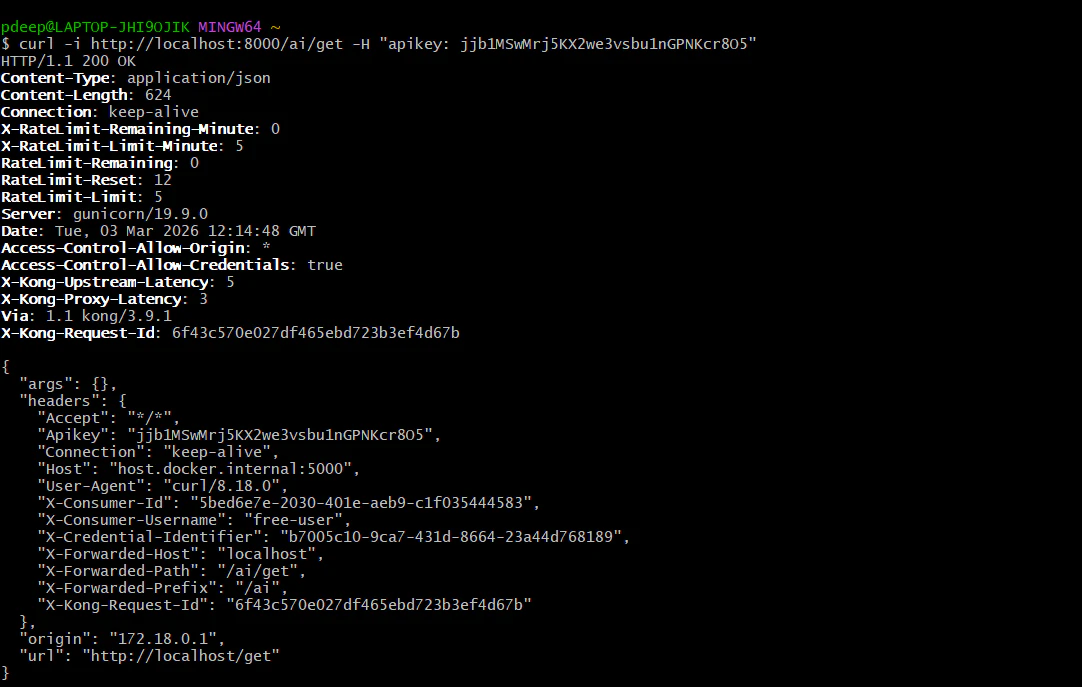
Step 5: Call API With Key

curl http://localhost:8000/ai/get \

  -H "apikey: W0D2dEpFfchHrM4iyqRqMaxJ4GihcBDX"

Now it should work again

These headers confirm everything is working perfectly:
NEXT STEP: Add Rate Limiting (Monetization Layer)

Now we turn this into:

Free Plan: 10 request/min
Pro Plan: 100 request/min

Step 1: Add rate limiting to service

Let’s start simple (per consumer).

curl -X POST http://localhost:8001/services/ai-service/plugins \

  -d "name=rate-limiting" \

  -d "config.minute=5" \

  -d "config.policy=local"

This means – 5 requests per minute per consumer.

Step 2: Test it

Run this 6–7 times quickly:

curl http://localhost:8000/ai/get \

  -H "apikey: W0D2dEpFfchHrM4iyqRqMaxJ4GihcBDX"

After 5 requests, you should see: “API rate limit exceeded”.

That’s your monetization control.

Next Level (Professional Setup)

Step 1: Create free vs pro plans (real monetization model)

Right now, rate limit applies to everyone equally.

We’ll separate users.

Create free user

curl -X POST http://localhost:8001/consumers \

  -d "username=free-user"

You should see in the JSON, our free-user is created.

Generate key:

curl -X POST http://localhost:8001/consumers/free-user/key-auth

The JSON shows API Key is generated for free-user.

Add rate limit only for free-user:

curl -X POST http://localhost:8001/consumers/free-user/plugins \

  -d "name=rate-limiting" \

  -d "config.minute=5" \

  -d "config.policy=local"

The JSON response shows we have applied rate limit for the free-user.

Create Pro User

curl -X POST http://localhost:8001/consumers \
-d "username=pro-user"

You should see in the JSON, our free-user is created.

Generate key:

curl -X POST http://localhost:8001/consumers/pro-user/key-auth

The JSON shows API Key is generated for pro-user.

Add higher rate limit:

curl -X POST http://localhost:8001/consumers/pro-user/plugins \

  -d "name=rate-limiting" \

  -d "config.minute=100" \

  -d "config.policy=local"

Now:

Free → 5/min
Pro → 100/min

That’s real SaaS tiering.

Test the free tier (Limit: 5 per minute)

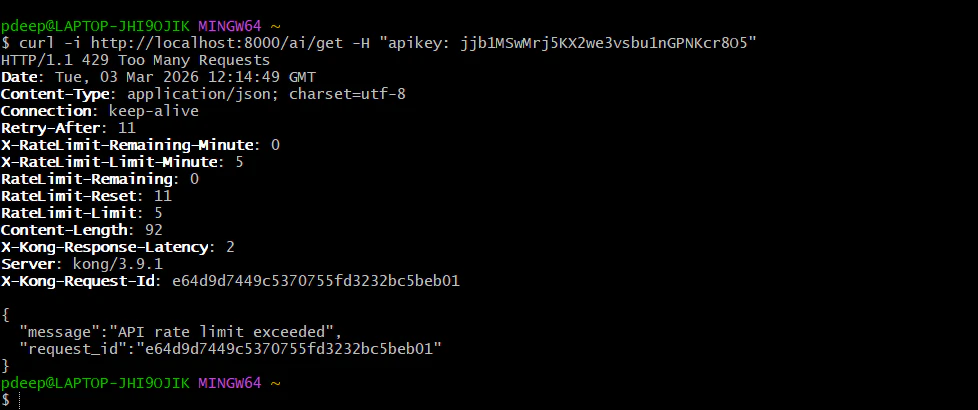
Run this command 6 times quickly:

curl -i http://localhost:8000/ai/get -H "apikey: jjb1MSwMrj5KX2we3vsbu1nGPNKcr8O5"


Requests 1-5: You should see HTTP/1.1 200 OK.

Request 6: You should see HTTP/1.1 429 Too Many Requests with the message: "API rate limit exceeded".
Test the Pro tier (Limit: 100 per minute)

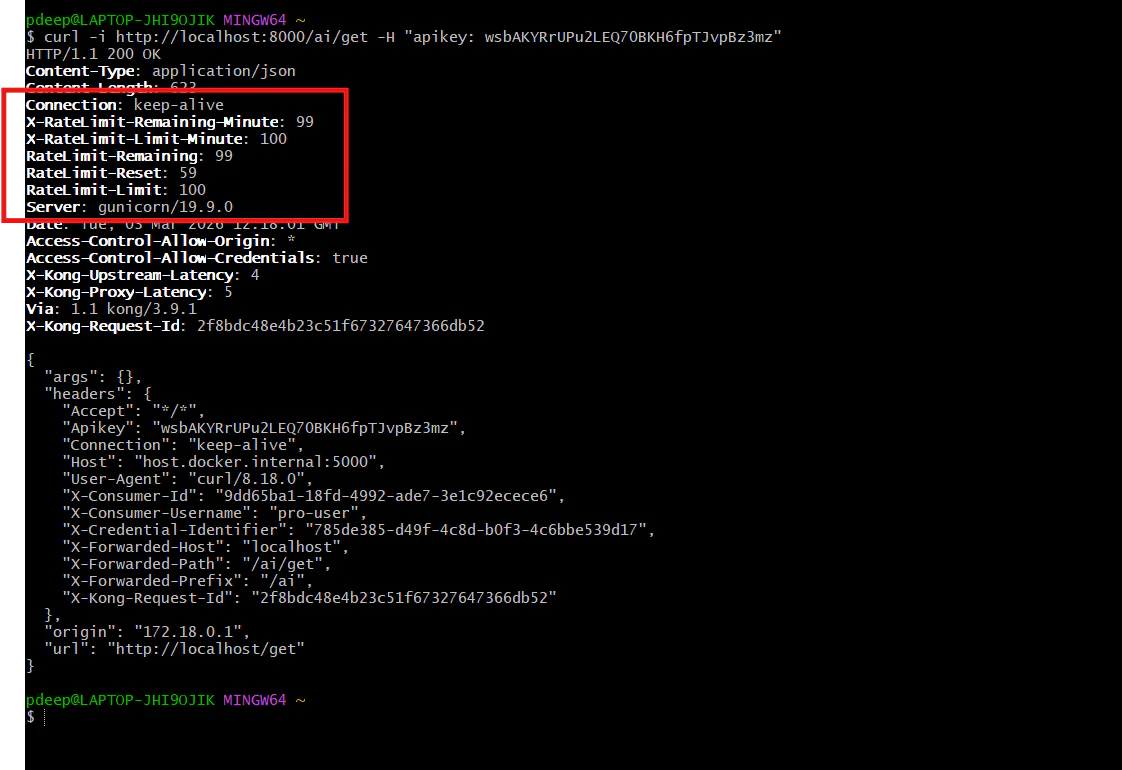
Even if your free user is blocked, your pro user should still work perfectly:

curl -i http://localhost:8000/ai/get -H "apikey: wsbAKYRrUPu2LEQ70BKH6fpTJvpBz3mz"

Check the headers in the response; you will see X-RateLimit-Limit-Minute: 100. This user has a much larger "bucket."

Summary of results by following these steps 

You have successfully moved from a wide-open API to a secured, tiered monetization model. You can now distinguish between "Free" and "Pro" traffic and enforce different financial and technical limits at the edge.

Conclusion: From Control to Scale

Successfully monetizing AI is not just about choosing a price point; it's about building the infrastructure of trust and control. By moving enforcement upstream to the API Gateway, you ensure that your AI services remain protected, your costs remain predictable, and your revenue tiers are technically sound.

While we’ve focused on the "Enforcement" layer today, the journey doesn't end here. To truly optimize your monetization strategy, you need to see exactly how your tiers are performing. For those looking to take the next step, you can easily export these Kong metrics to a visualization tool like Grafana. This allows you to monitor real-time usage trends, identify your most active "Pro" users, and spot potential abuse before it impacts your bottom line.

In an agentic world where traffic is driven by autonomous workflows rather than humans, the gateway is your most critical business tool.

Ready to secure your AI? Get a demo today.

API GatewayKong GatewayAPI SecurityLLMGovernanceRate LimitingMetering & BillingAgentic AIAI Monetization

Table of Contents

  • The reality of AI APIs in production
  • Why traditional API monetization models fall short
  • Monetization models that actually work for AI APIs
  • Where the gateway becomes the control plane
  • A practical architecture pattern
  • An example of tiered AI API access
  • The hidden risk: Agent-driven traffic
  • Observability is revenue protection
  • Production lessons learned
  • The strategic shift: Monetization as infrastructure
  • Looking ahead: AI monetization in an agentic world
  • Hands-on lab: Monetizing an AI API with metrics using Kong API Gateway
  • Conclusion: From Control to Scale

More on this topic

Demos

How Should API Gateways And Service Mesh Fit Into Your API Platform?

Videos

PEXA’s Resilient API Platform on Kong Konnect

See Kong in action

Accelerate deployments, reduce vulnerabilities, and gain real-time visibility. 

Get a Demo
Topics
API GatewayKong GatewayAPI SecurityLLMGovernanceRate LimitingMetering & BillingAgentic AIAI Monetization
Deepanshu Pandey
Kong Champion

Recommended posts

AI Input vs. Output: Why Token Direction Matters for AI Cost Management

EnterpriseMarch 10, 2026

The Shifting Economic Landscape: The AI token economy in 2026 is evolving, and enterprise leaders must distinguish between low-cost input tokens and high-premium output tokens to maintain profitability. Agentic AI Financial Risks: The transition t

Dan Temkin

Connecting Kong and Solace: Building Smarter Event-Driven APIs

EngineeringMarch 20, 2026

Running Kong in front of your Solace Broker adds real benefits: Authentication & Access Control – protect your broker from unauthorized publishers. Validation & Transformation – enforce schemas, sanitize data, and map REST calls into event topics.

Hugo Guerrero

Protecting Services With Kong Gateway Rate Limiting

EngineeringMay 18, 2021

The Kong Gateway Rate Limiting plugin is one of our most popular traffic control add-ons. You can configure the plugin with a policy for what constitutes "similar requests" (requests coming from the same IP address, for example), and you can set y

Guanlan Dai

Configuring Kong Dedicated Cloud Gateways with Managed Redis in a Multi-Cloud Environment

EngineeringMarch 12, 2026

Architecture Overview A multicloud DCGW architecture typically contains three main layers. 1\. Konnect Control Plane The SaaS control plane manages configuration, plugins, and policies. All gateways connect securely to this layer. 2\. Dedicated C

Hugo Guerrero

Governing Claude Code: How To Secure Agent Harness Rollouts with Kong AI Gateway

EngineeringMarch 7, 2026

Claude Code is Anthropic's agentic coding and agent harness tool. Unlike traditional code-completion assistants that suggest the next line in an editor, Claude Code operates as an autonomous agent that reads entire codebases, edits files across mult

Alex Drag

Building the Agentic AI Developer Platform: A 5-Pillar Framework

EnterpriseJanuary 15, 2026

The first pillar is enablement. Developers need tools that reduce friction when building AI-powered applications and agents. This means providing: Native MCP support for connecting agents to enterprise tools and data sources SDKs and frameworks op

Alex Drag

Building Secure AI Agents with Kong's MCP Proxy and Volcano SDK

EngineeringJanuary 27, 2026

The example below shows how an AI agent can be built using Volcano SDK with minimal code, while still interacting with backend services in a controlled way. The agent is created by first configuring an LLM, then defining an MCP (Model Context Prot

Eugene Tan

Ready to see Kong in action?

Get a personalized walkthrough of Kong's platform tailored to your architecture, use cases, and scale requirements.

Get a Demo
Ask AI for a summary of Kong
Stay connected
    • Company
    • About Kong
    • Customers
    • Careers
    • Press
    • Events
    • Contact
    • Pricing
    • Legal
    • Terms
    • Privacy
    • Trust and Compliance
    • Platform
    • Kong AI Gateway
    • Kong Konnect
    • Kong Gateway
    • Kong Event Gateway
    • Kong Insomnia
    • Documentation
    • Book Demo
    • Compare
    • AI Gateway Alternatives
    • Kong vs Apigee
    • Kong vs IBM
    • Kong vs Postman
    • Kong vs Mulesoft
    • Explore More
    • Open Banking API Solutions
    • API Governance Solutions
    • Istio API Gateway Integration
    • Kubernetes API Management
    • API Gateway: Build vs Buy
    • Kong vs Apigee
    • Open Source
    • Kong Gateway
    • Kuma
    • Insomnia
    • Kong Community

Increase developer productivity, security, and performance at scale with the unified platform for API management and AI.

  • Japanese
  • Frenchcoming soon
  • Spanishcoming soon
  • Germancoming soon
© Kong Inc. 2026