## **Add a Route**
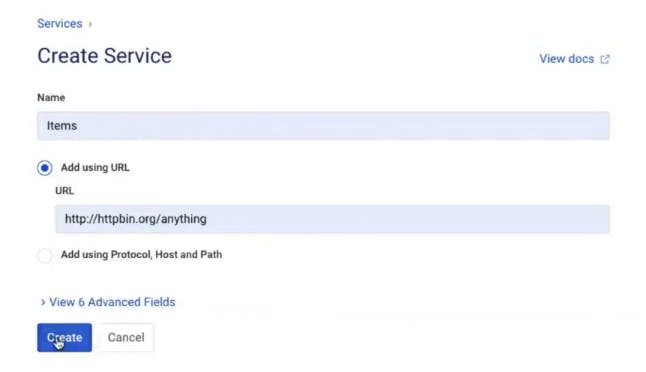
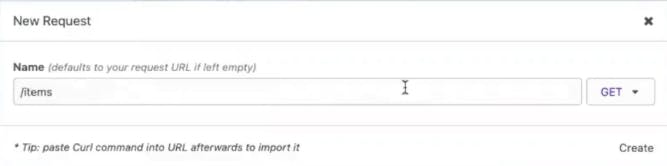
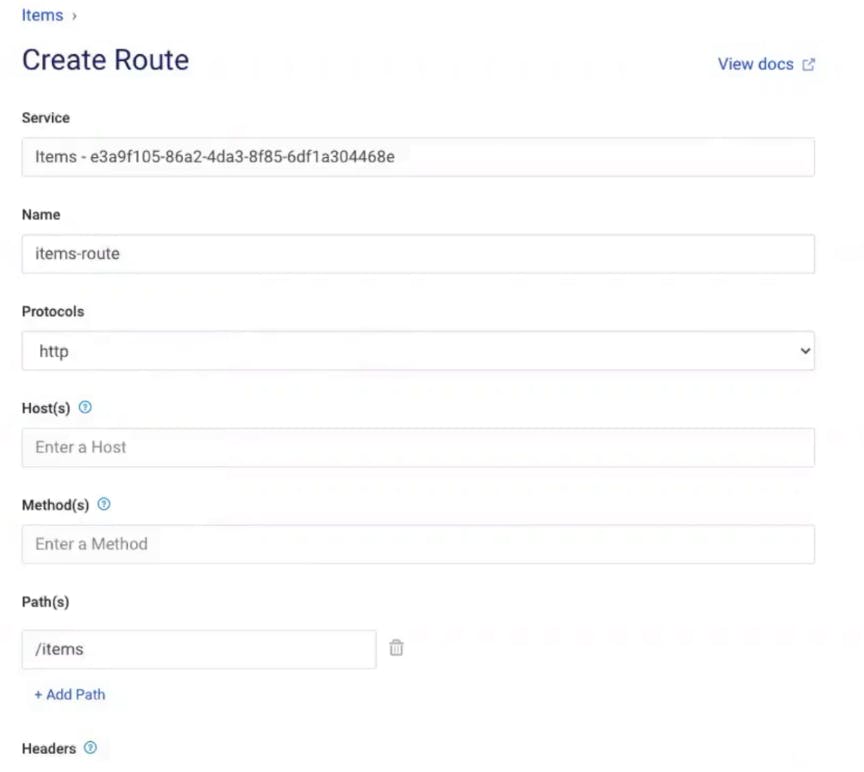
In Kong Manager, click on the "Items" service you created above. This service needs a corresponding route to tell Kong how to expose this service to clients. Click “Add a Route.” Give the route a name (items-route). In my example, I'll tell Kong to route anything that matches the "/items" path to this service. There are many other parameters that you can use to match the incoming requests to Kong.
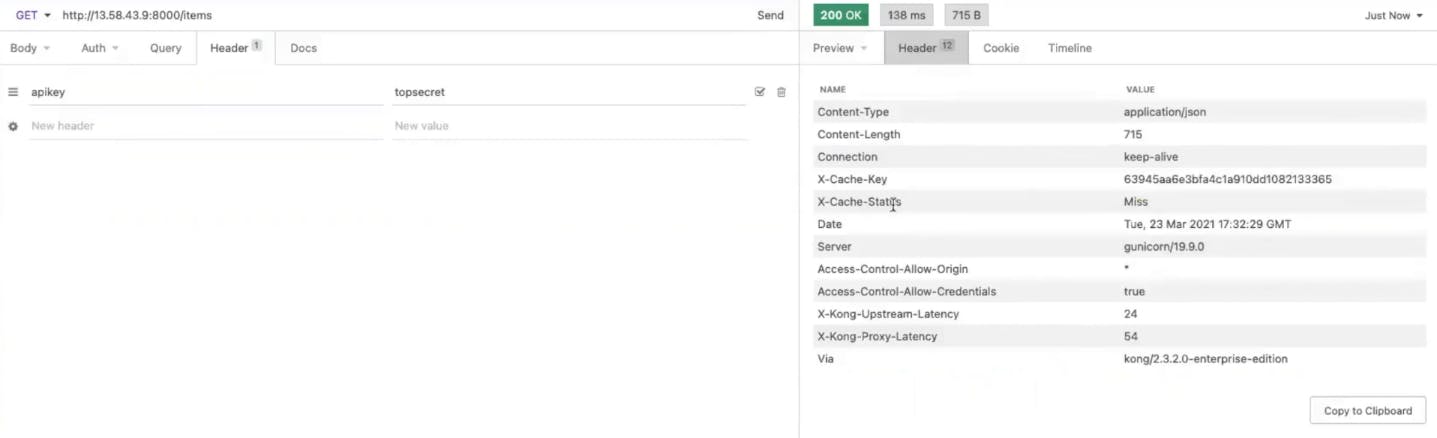
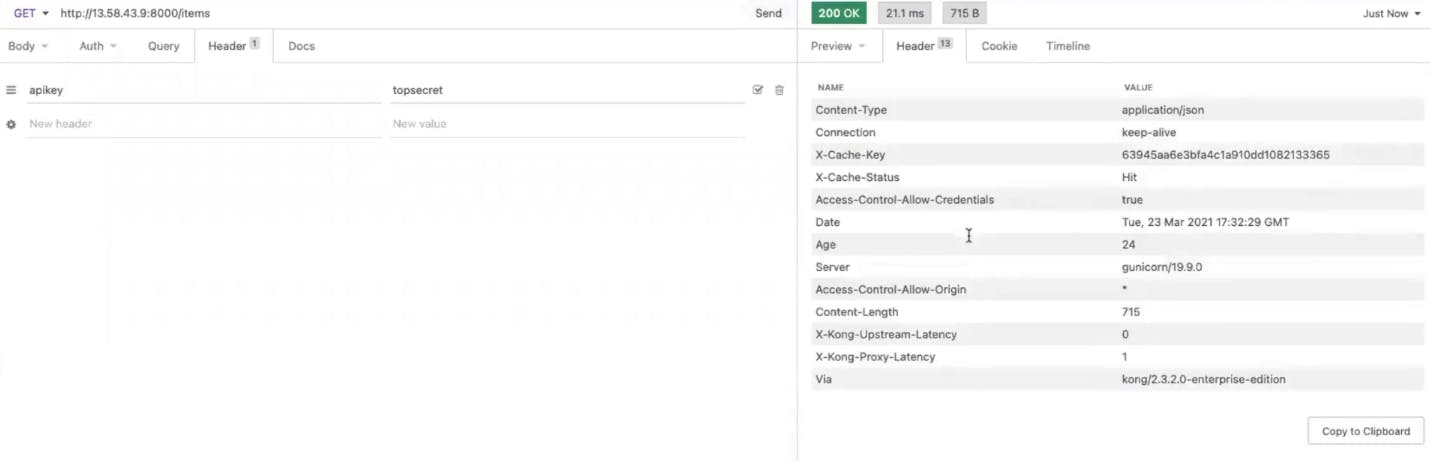
Now, if you go back to your browser client and refresh the screen (with http://<konghost>:8000/items in the address bar), you should see that Kong is routing to the http://httpbin.org/anything endpoint that I specified for the Items service.

Great, I’m are successfully using Kong to abstract our upstream service from our client and exposing it on the /items path. Now I can create/modify a new upstream service and route the client to it whenever I’m are ready.
## **Add a Plugin**
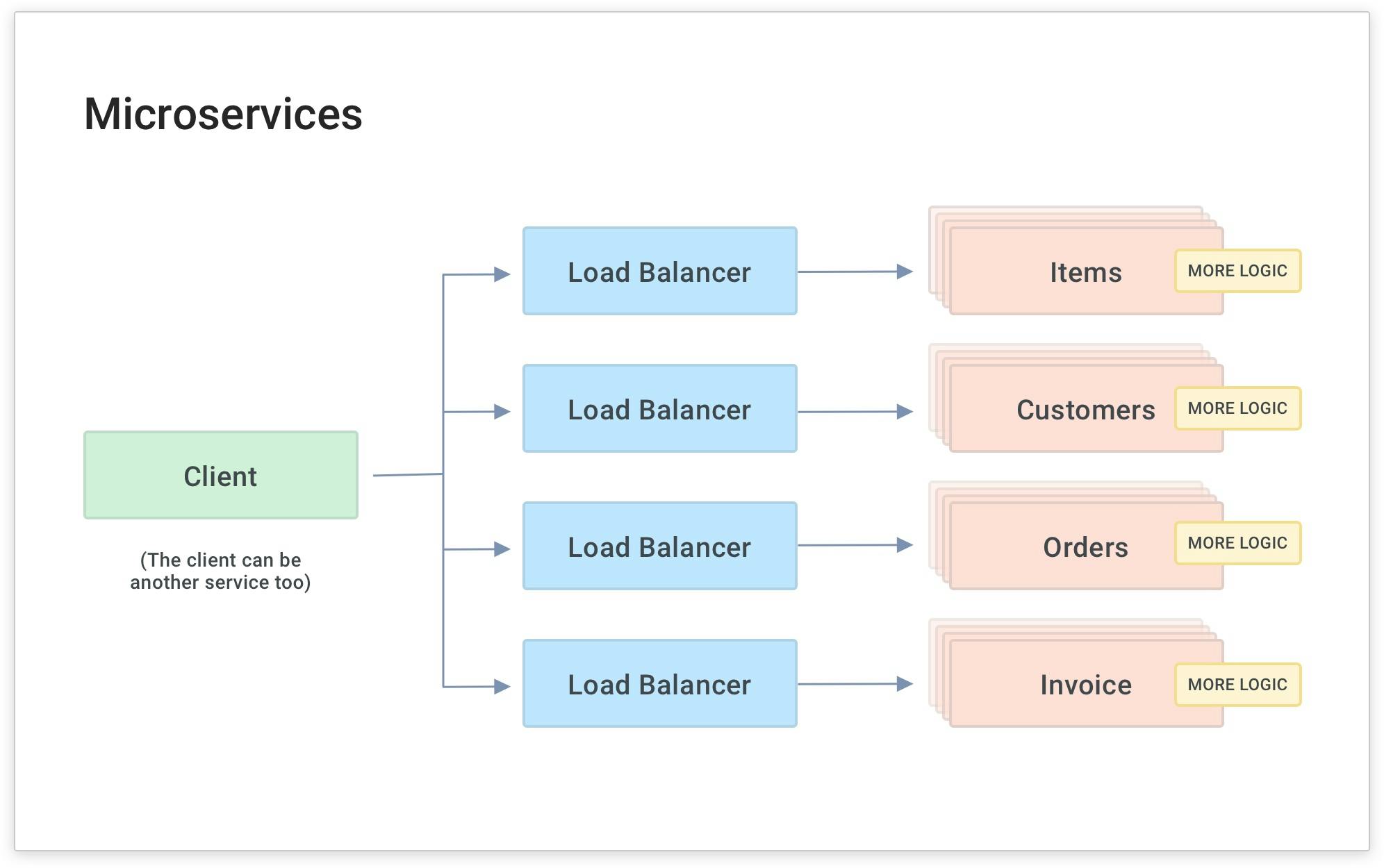
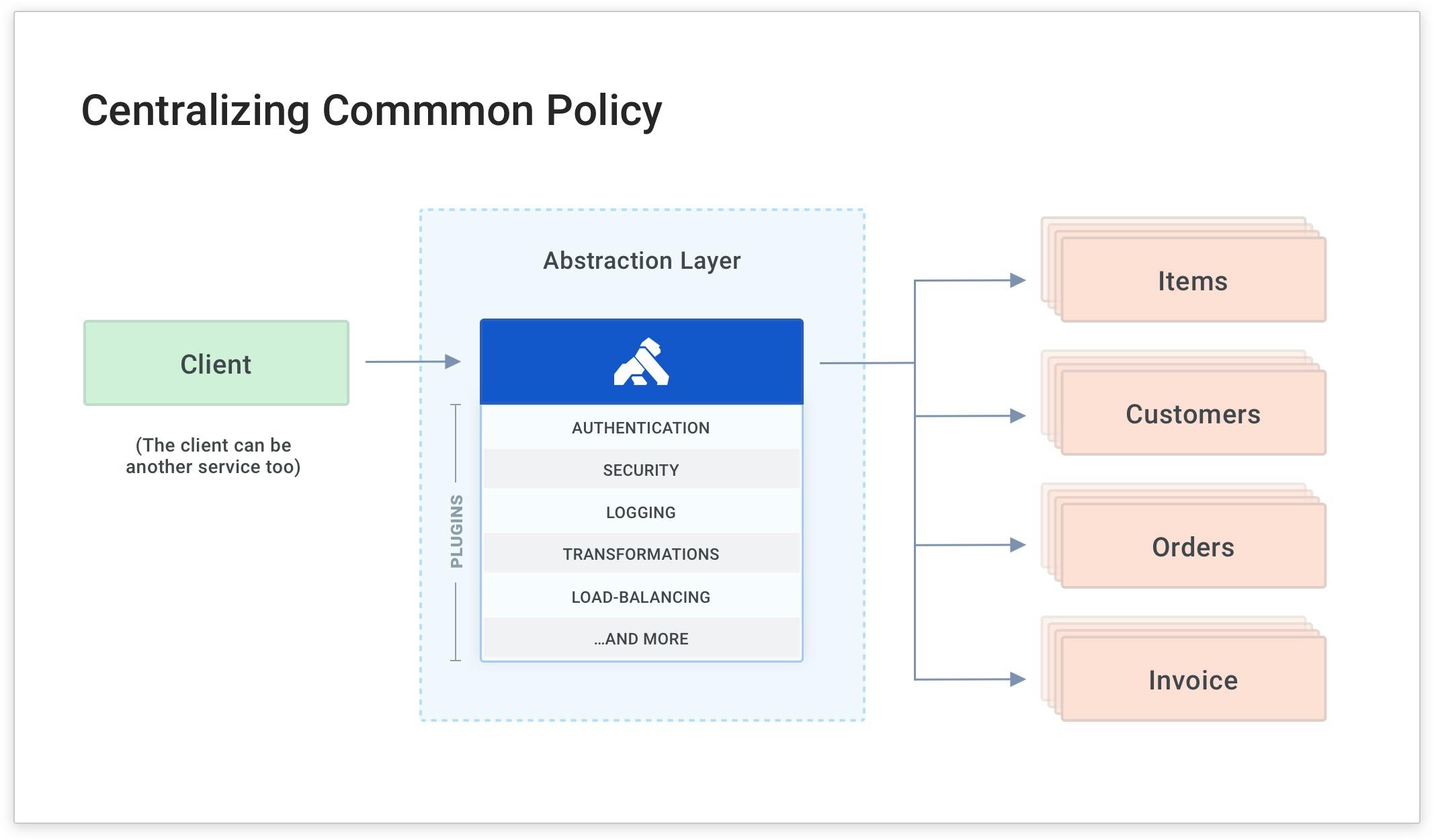
As you do this with more and more services (and microservices), your developers will inevitably write common code for each service to handle functionality that's common to many services. In the above diagram, the yellow boxes represent common functionality like [API authentication](http://konghq.com/blog/learning-center/api-gateway-authentication)API authentication, [rate limiting](https://konghq.com/blog/learning-center/what-is-api-rate-limiting)rate limiting and caching. These are all things that your services need to perform. If they're built into each service separately, they'll have to be built and maintained by each development team. This is a source of overhead and complexity because each team will spend time maintaining a common layer of code for each microservice that gets built.
### ***The easy way to abstract these policies from your development teams is to have Kong Gateway apply microservice logic for you. ***
This way, your developers can build the business logic and fun stuff (rather than the common, tedious code like authentication).
In our example, Kong Gateway is already abstracting the "Items" service and routing the client's request to the service on the /items path. Next, I'll show you how to add a common policy for authentication using a plugin. [Kong plugins](https://konghq.com/products/kong-gateway/kong-plugins)Kong plugins enable you to enforce policies without having to write code in the service itself.
Next, I'll show you how to add a [KeyAuth plugin](https://docs.konghq.com/hub/kong-inc/key-auth/)KeyAuth plugin and a consumer so you can protect your service with an API key.
### **Add the Kong Gateway Key Authentication Plugin**
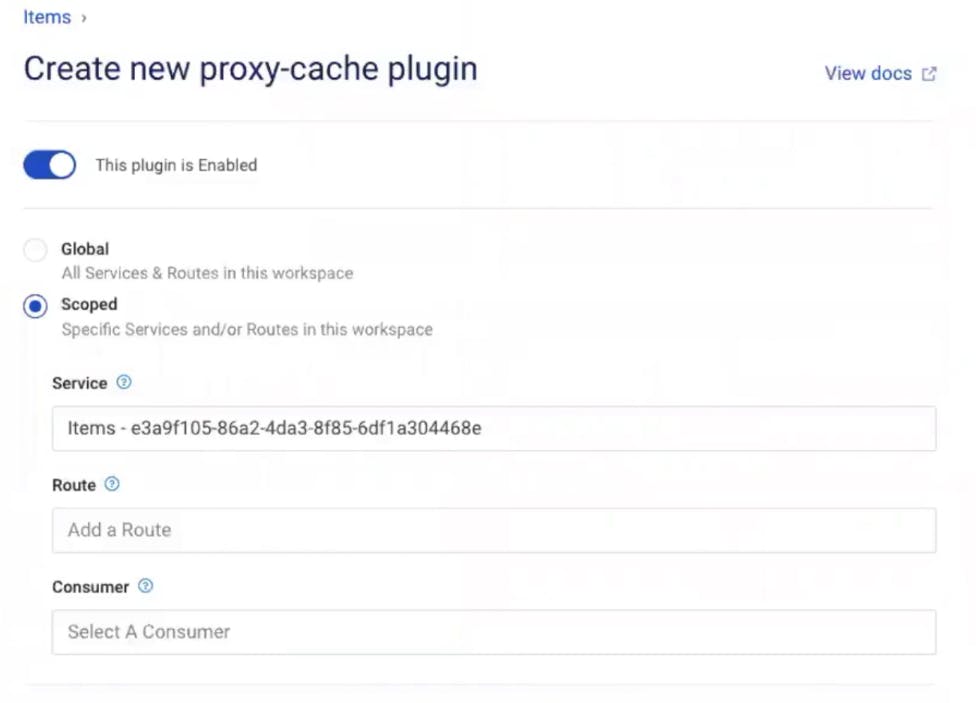
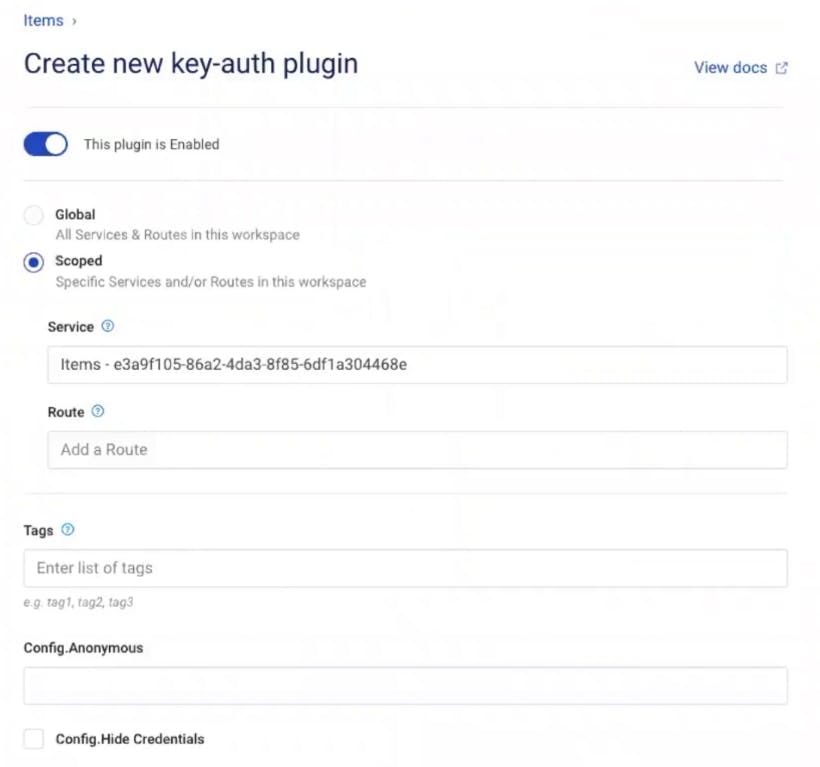
In Kong Manager, under your service, go to the "Add a Plugin" button. Then, find and enable the "Key Authentication" plugin.
In my example, I'm going to use the defaults, but note that you can change the scope and specify the API key name that you want to use.
In your browser, refresh your endpoint. You should get the error message "No API keys found in request." The error message means Kong is enforcing key authentication on your endpoint. This is exactly what I want!
#### **Add a Kong Gateway Consumer**
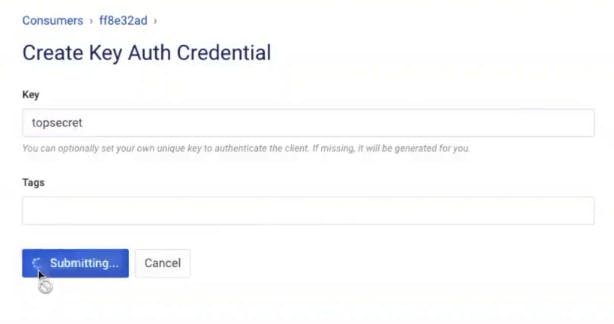
To authenticate this request (so Kong accepts it), I need to add a consumer to Kong Gateway and assign that consumer [an API key for authentication](https://konghq.com/blog/learning-center/what-are-api-keys)an API key for authentication.
Create a consumer using the menu on the left in Kong Manager. Give the consumer a username and custom_id. You can use the custom_id to store an existing unique ID for the consumer if you want to map Kong with users in your existing identity store.[](https://konghq.com/blog/kubernetes-ingress-grpc-example)